Recently, almost every organization has had to switch to working from home, working remotely or meeting with colleagues via video conference. And although the peak may seem to be over, many organizations are expected to make working from home a permanent part of the way we work together. This moves the professional look of meetings in the office into the home.
Are you taking part in a video meeting, organizing an online meeting or ‘calling in’ as a speaker via video link at an online event? Then of course you want to make a good impression and contribute to your organization’s professional image. In this article we give you 7 tips to make sure you look good on camera!
1. Place your webcam at eye level
Many laptops have a built-in webcam, but because the top edge of your screen is often quite low, the viewing angle is not ideal. So raise your laptop and place the webcam at eye level, or ideally just slightly higher. You can of course use a laptop stand, but a stack of books will get you a long way too. An added bonus: placing your laptop screen at eye level is also ergonomically sound!
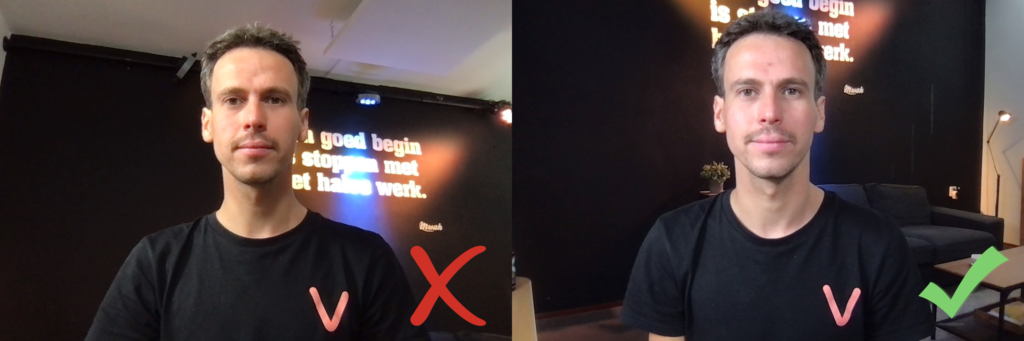
2. Don’t create unnecessary ‘headroom’
The subject of your webcam is you. So try to fill the webcam frame with you as much as possible. Tilt the webcam so that no unnecessary empty space in the ‘shot’ is wasted on the area above your head, what we in the business call ‘headroom’. Also, do not place your computer too far away, and aim for a frame-filling composition.
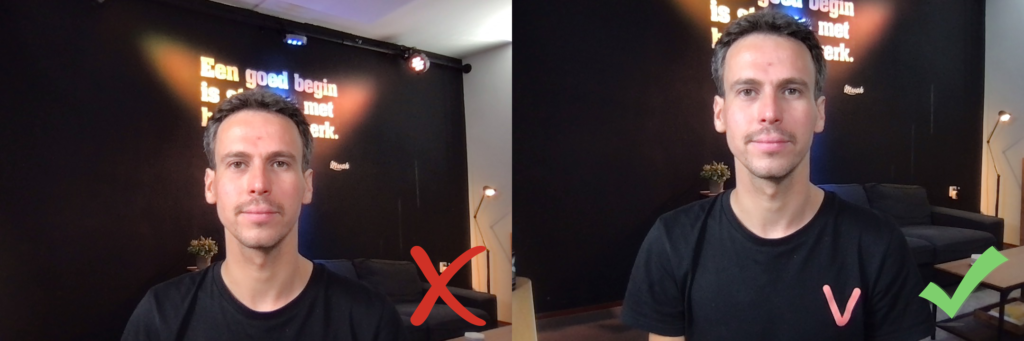
3. Don’t sit with your back to the window
Today’s webcams have plenty of pixels and resolution, but most still struggle with extreme lighting conditions. So do not sit with your back to the window, but the other way around. You can also choose to let daylight work in your favor and use it as a generous light source to light your face. Of course, do try to avoid getting distracted by what is going on outside. Sheer curtains or drapes can help enormously to improve the picture.
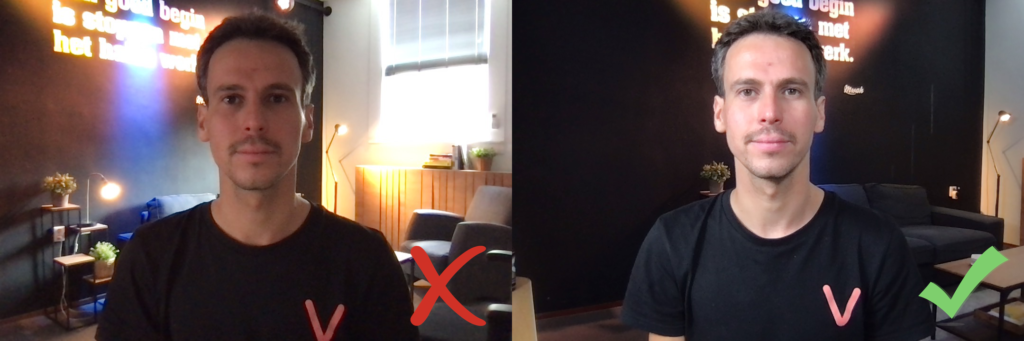
4. Add extra lighting
As mentioned, you can use daylight as your primary light source, but one drawback is that the weather can change in no time. A cloud in front of the sun can suddenly spoil everything. So place a lamp with soft light to the left and/or right of your laptop. This evens out your skin and provides a stable light source.
A ‘ring light’ is often used for this. But you can also achieve this with a cheap paper lantern lampshade, which gives you nice diffuse light. With ‘smart’ LED bulbs you can nowadays also adjust the color temperature and brightness. That way you create a real ‘studio atmosphere’ in no time.
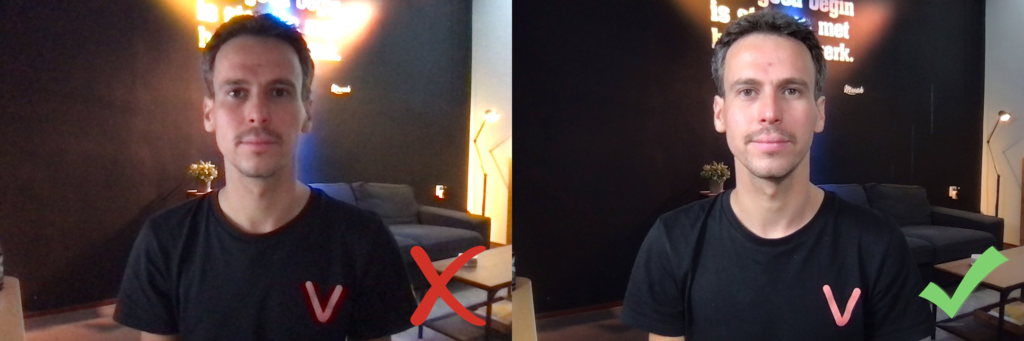
5. Eliminate distractions in the background
Do you look good on screen? Then it is always worth quickly checking whether there is anything distracting in the background. Just hung up clean laundry? Kids’ toys on the floor? Move them out of the way for a moment. Of course, also try to avoid being disturbed, and hang a ‘do not disturb’ sign on the door.
A virtual background or digitally blurring your surroundings is very popular. It gets rid of your clutter in one go. Very handy, of course, but we are not fans. It often looks ugly and fake, and can therefore be very distracting. So don’t do it.
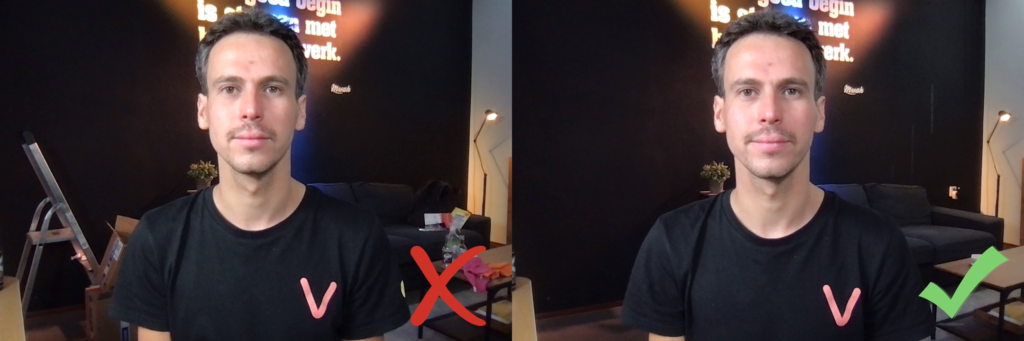
6. Experiment with clothing
You might not expect it, but the clothes you wear have a big influence on the way the webcam ‘looks’ at you. For example, the webcam will always try to ‘average’ the exposure of the shot. A black shirt or a bright white wall in the background does not help.
Is your webcam not giving you a nice picture? Then try experimenting with a different piece of clothing, preferably clothing in soft, solid colors, and avoid strong contrasts. Avoid clothing with striped or checked patterns. This can cause a ‘moiré pattern’ in the video image, which is not desirable. Logos, words and slogans on clothing can also be very distracting.
7. Yourself
Don’t forget about yourself, since you are the one in the spotlight. Do you wear glasses? Then try contact lenses, because eyeglass lenses can sometimes reflect the light from the window, the lamps or the laptop screen. As a result, people can no longer see your eyes and you lose contact with the viewer.
Wear clothes that suit you, but also think about the role you play and how you want to come across to others. In a meeting with your immediate colleagues this may be less relevant. But it does matter if, for example, you are part of an online program in a livestream. First impressions are very important then.
‘Fake it till you make it’ is a real showbiz term. Do you look tired or pale on camera? In that case, good lighting and makeup are your friends.
Soft, even light from the front makes wrinkles and shadows disappear. It can make you look a few years younger. And if you can adjust the warmth of the light from white to a more yellowish light, that also helps enormously.
Otherwise, simply use tinted moisturizer, foundation or makeup. On camera, you will look like you have a summer glow and a more energetic appearance. The video quality of meeting tools is often so low that viewers probably won’t even notice you’re wearing makeup. So this tip is also for our male readers.
Finally: radiate enthusiasm. From behind your laptop, your delivery loses some of its energy on its way to the viewer. So give extra energy, more than you are used to.
Don’t be nervous: a mistake or slip of the tongue is fine. That’s human.